Design is more than visuals — it’s collaboration, iteration, and communication.
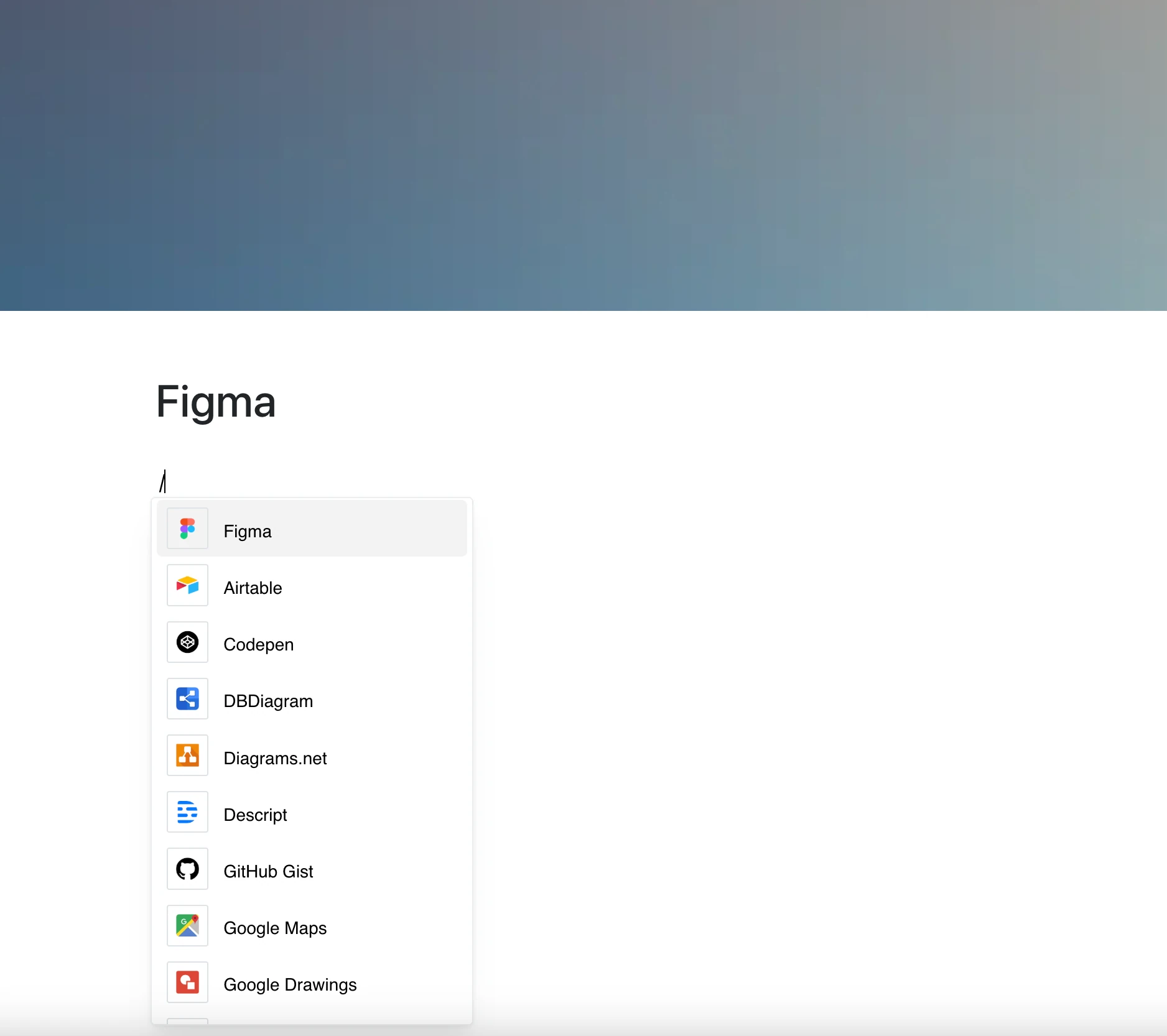
With the Figma integration, you can embed Figma files, prototypes, and boards right into your pages. Whether you’re reviewing a UI mockup, prototyping a new feature, or simply showcasing creative work, your visuals sit next to your thinking.
Why Add Figma to Your Editor?
Figma is a collaborative design platform — and now it lives right next to your words.
Key Features:
- Embed Figma files, designs, prototypes, and boards with a single link
- The frame shows the current version of the file whenever the page is opened
- Zoom, navigate, and inspect designs in place, as far as Figma allows
- Comments and other Figma tools depend on Figma and the link’s access settings
- For private files, the frame may ask you to sign in to Figma
Use Cases
- Share design specs with developers
- Add UI flows to product documentation
- Review prototypes in context during sprint planning
- Embed moodboards or design assets into creative briefs
- Document accessibility or design system changes visually
Always the Current Version
The frame shows the latest version of the file whenever the page is opened — no manual screenshots or updates.
No exports. No uploads. Just your design, wherever it’s needed.