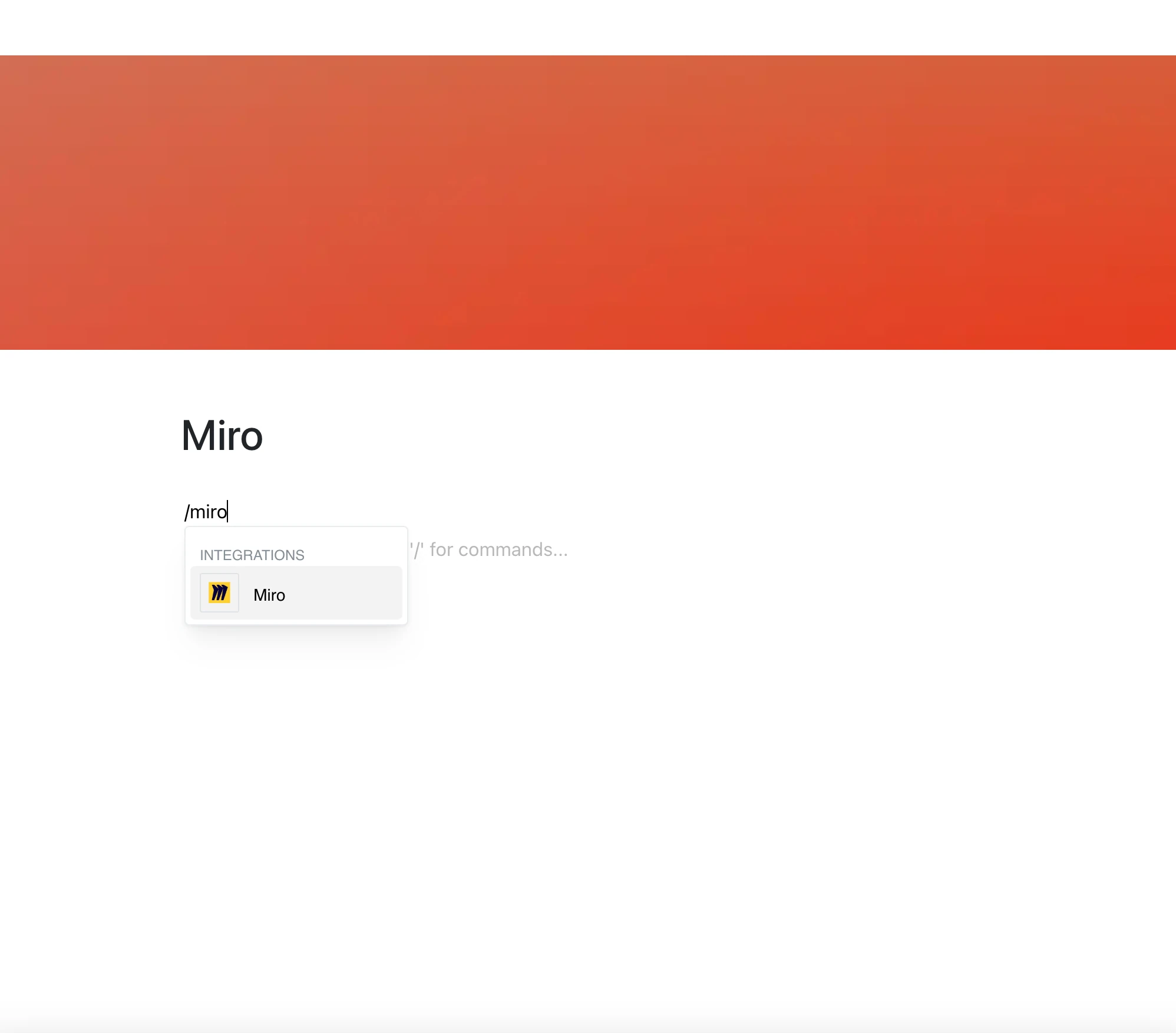
Keep your visual work next to your text.
With the Miro integration, you paste a link to a Miro board and it appears right in your Layers page, so brainstorming, planning, and design live alongside your documentation.
Why Use Miro in Your Editor?
Miro is a powerful visual collaboration tool that lets teams innovate and brainstorm — and now, your Miro boards are right where you need them.
Key Features:
- Embed a Miro board by pasting its miro.com/app/board link
- Zoom, pan, and explore the board inside the frame, as far as Miro allows
- The embed shows the current content of the board whenever the page is opened
- Place several Miro boards on one page
- Share ideas visually with your team
Use Cases
- Add team planning and ideation boards to your docs
- Share wireframes and design mockups directly in product documentation
- Add mind maps and flow diagrams for brainstorming
- Embed visual project roadmaps in strategy and planning docs
- Support remote workshops and meetings with a board on the page
Visual Collaboration Next to Your Text
Miro runs inside the frame, so board access and what you can do there depend on Miro and the board’s sharing settings. You may be asked to sign in to Miro.