Layers

Client work · one document, two companies

Client portal room for one document and two companies

Put the document your client has to review in one room. The client enters with a one-time code from their email, comments or edits on their turn and approves; you see when they opened it and when they came back.

No sign-up to start. The document stays editable in this browser; sign-in appears only when you save it to a workspace or invite a team.

Client portal room for one document and two companies: first page

We use your email only to send the file and the reminders you ask for. Unsubscribe in one click.

Share the live result:

Start editing here — no sign-up. Send the result first; sign in only if you want to keep it in a workspace or invite your team.

  1. 1Prepare the document. Write it in your workspace: a proposal, a contract, a kickoff document or a tracker. Rooms take Word, Excel and PowerPoint files.
  2. 2Send it for approval. Choose Send for approval on the file. Enter the client’s email and company, choose Edit with tracked changes or Comment only, and how long they have to respond.
  3. 3Let the client work without an account. They get an email with the link and a code that works once, for 10 minutes. Coming back later, they ask for a new code on the same link. The room page tells them that you will see when they opened it.
  4. 4Approve and freeze the version. When both sides have pressed Agreed, freeze the version: the room makes a package with the document, a PDF, the log and SHA-256 fingerprints that either side can check.

Example room

The room your client opens

A real room opens only with the code from the invitation email, so this is the same page built from example data. Switch to the owner’s side to see the log and the email you get when the client opens the room.

Example room, read-only. Names and companies are fictional; nothing here is sent anywhere.

External document room

The room owner will see that you opened the document and when you came back.

Northwind Studio → Harbor Dental Group

Status: In progressTurn: yoursOpen until 5 November 2026

Client portal kickoff.docx

Who is who

RoleNorthwind StudioHarbor Dental Group
Project leadElena ParkDaniel Reyes, practice manager
Approves deliverablesElena ParkDaniel Reyes
Response time1 business day3 business days

Deliverables

DeliverableDueStatus
Sitemap and page list9 OctApproved
Homepage design16 OctApproved
Service page copy20 OctIn review
Inner page designs23 OctChanges requested

Comments

Harbor Dental Group 6 Oct, 14:52
Can the booking button be on every service page, not only the homepage?

Northwind Studio 6 Oct, 16:21
Yes — added to the scope in section 2.

Working on documents with your own clients?

Set up a room like this for your clients

Sent with Layers

The situation

When this template earns its place

You send a proposal, a contract or a project plan, and it comes back as “final_v3_DR.docx” with changes nobody can trace, or it does not come back at all. A full client portal is a lot to set up for one document, and asking a client to create one more account is often where it stops. A Layers room holds one document between your company and one client contact. The client opens the link from the invitation email and enters a six-digit code, with no account. Edits go in turns, comments sit next to the document, both sides approve, and the agreed version is frozen into a package with a PDF and the room log. Below is an example room exactly as the client sees it, and a kickoff document you can fill in now.

How to use it

A short path to a usable result

  1. 1

    Prepare the document

    Write it in your workspace: a proposal, a contract, a kickoff document or a tracker. Rooms take Word, Excel and PowerPoint files.

  2. 2

    Send it for approval

    Choose Send for approval on the file. Enter the client’s email and company, choose Edit with tracked changes or Comment only, and how long they have to respond.

  3. 3

    Let the client work without an account

    They get an email with the link and a code that works once, for 10 minutes. Coming back later, they ask for a new code on the same link. The room page tells them that you will see when they opened it.

  4. 4

    Approve and freeze the version

    When both sides have pressed Agreed, freeze the version: the room makes a package with the document, a PDF, the log and SHA-256 fingerprints that either side can check.

Filled example

See the result before you start

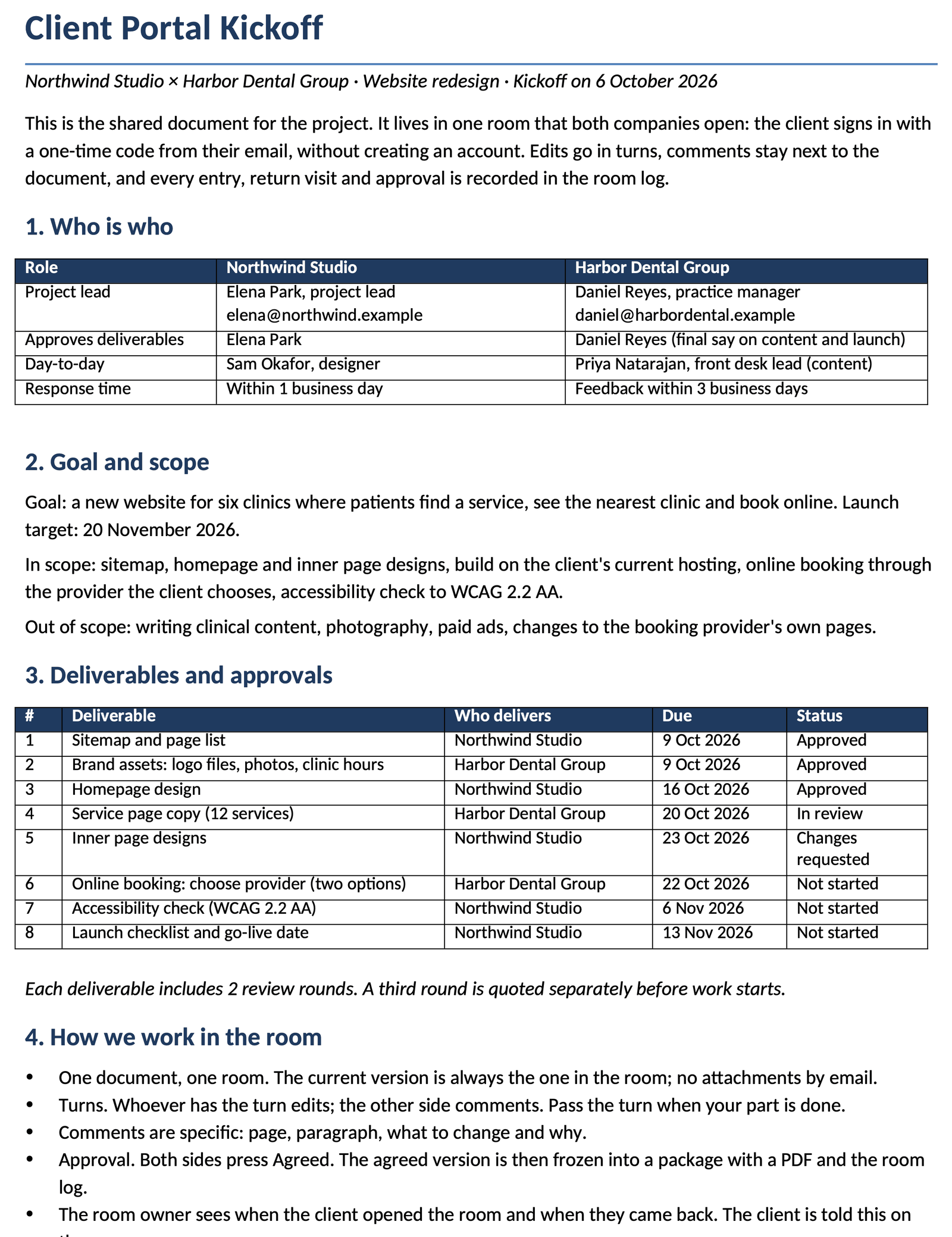
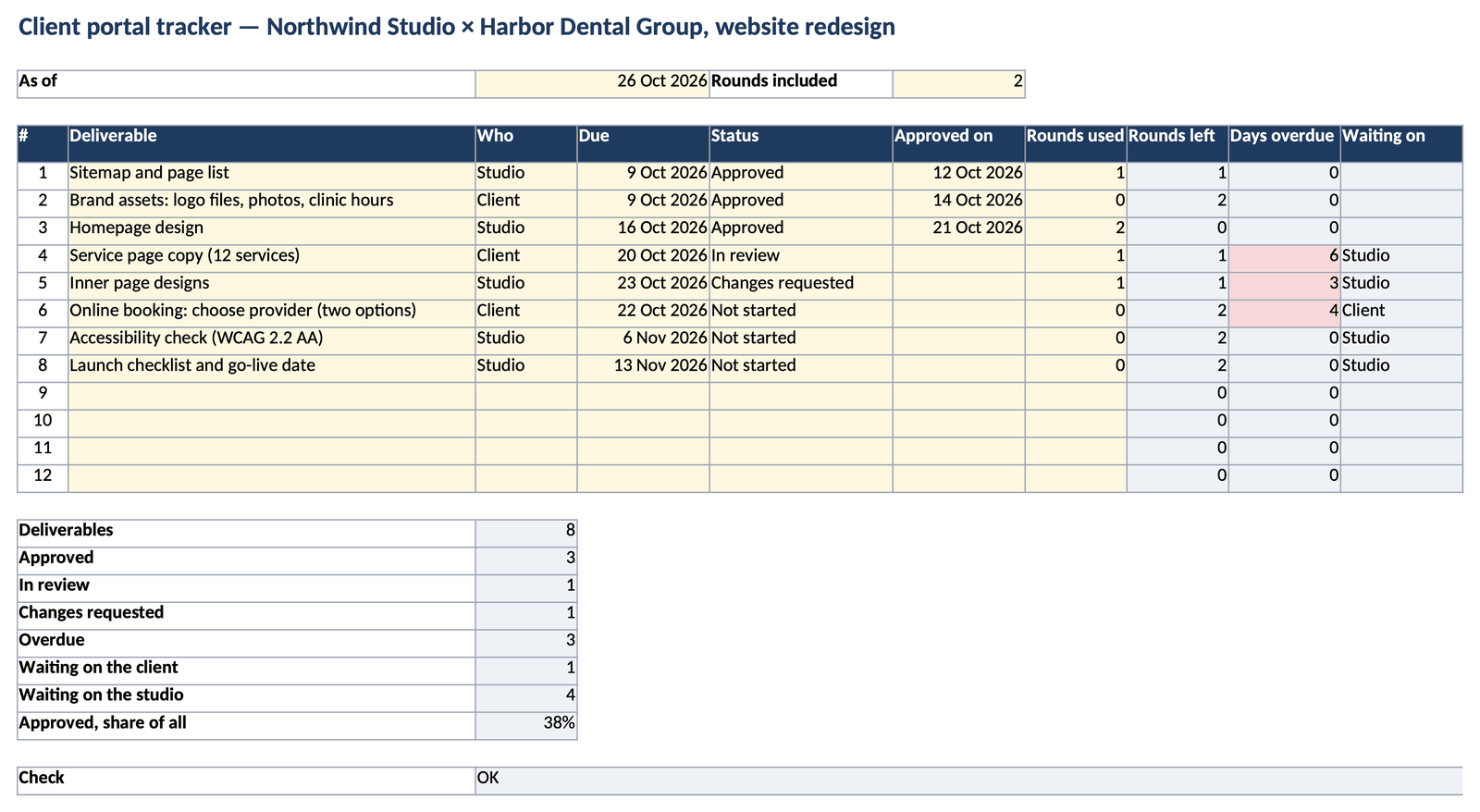
The example room is a website redesign between Northwind Studio, a fictional design agency, and Harbor Dental Group, a fictional group of six clinics. The kickoff document lists who approves what, eight deliverables with due dates and statuses, the decisions so far and two open questions. The tracker counts what is approved, what is overdue and whose move it is.

Filled client portal kickoff document: who is who on both sides, goal, scope and deliverables with due dates and status
Filled example. Replace the sample names, dates and figures with your own.

Common mistakes

What makes the document stop working

Sending the file as an attachment

Every reply creates another copy, and nobody is sure which one is current. Keep one version in the room; the log shows who changed it and when.

Approval buried in an email thread

“Looks good” in a reply is hard to find and easy to dispute later. In the room, approval is a recorded step, and the frozen package carries it.

Asking the client to sign up first

A new account is where many clients stop. The room needs only their email address.

FAQ

Questions before you use it

Does my client need an account?

No. They open the link from the invitation email and enter a one-time six-digit code. The code is valid for 10 minutes; if it expires, or when they come back on another day, they request a new code on the same link and it goes to the same email address.

Is it free? Do I need to sign up?

Filling in the kickoff document and the tracker on this page is free and needs no account. To send a document to a client in a room, you sign in, because the room lives next to the file in your workspace.

What does the room owner see?

When the client entered the room and when they came back, and every comment, turn and approval, in a log with dates. You also get an email when the client first opens the room and a daily summary of return visits; both can be turned off. The client sees a line on the room page saying so.

Can the client edit the document?

If you allow it. In a Word document their edits are tracked changes under their company name, and you accept or reject them. Spreadsheets and presentations are edited in turns: each turn saves a new version, and its number and SHA-256 fingerprint go into the log.

Is a room a full client portal?

No. One room holds one document and one client contact, and it stays open for the time you choose. That fits a proposal, a contract or a kickoff document. For many files and many people on both sides, invite the client to a shared workspace instead.

Can I download the documents?

Yes. The kickoff document downloads as a .docx file and the tracker as .xlsx; both open in Microsoft Word and Excel.

Next step

Kickoff agreed? Write the project charter next

Open the next live template →

Browse all live templates